The No-BS Guide to Multilingual Squarespace Sites (2026 Edition): Native vs. Weglot vs. The "Hard Way"
By Gediminas | Founder of UOGAweb & Squarespace Circle Gold Member
The Ultimate Guide to Multilingual Squarespace Websites 2026
Here’s the short answer: Squarespace still has no built-in translation feature in 2026. You have three real options — the Weglot extension (from ~€15/month, the right call for most businesses), the manual method (free, full control, painful to maintain), or a Google Translate widget (please don’t). Whichever you pick, the SEO layer — hreflang tags, indexable translated pages, one clean URL structure — decides whether your second language brings you customers or quietly hurts your rankings.
That’s the whole guide in one paragraph. The rest is the detail that makes it actually work.
Fully updated August 2026 — every price and platform fact below was re-verified this month, straight from Squarespace's and Weglot's own documentation.
I’m not writing this from other people’s tutorials. My own studio site runs in English and Lithuanian on the exact stack described in Part 4, and I run the same Weglot setup on client builds — the physiotherapy studio Kartu su kūnu is one of them. I’ve done it the manual way too. Both scars and results below.
While Shopify and Wix shipped native translation tools years ago, Squarespace never did. For years the honest options were hacky code, duplicated pages, and hoping Google would cope.
Good news: in 2026 the options are solid. Bad news: you can still wreck your SEO by picking the wrong one.
"Site language" is not translation — sort this out first
Squarespace has a setting called Site language. It is not a translation feature, and confusing the two is the most common mistake I see.
Site language changes Squarespace's built-in text: dates, form field labels, navigation controls, the checkout page, the order-confirmed page, customer email notifications. It does not touch one word you wrote. Your text blocks, page titles, blog posts, categories and tags stay exactly as you typed them.
You'll find it in Site Languages on version 7.1, or Language & region on 7.0. Underneath the dropdown, Squarespace previews how your dates, times and currency will be formatted.
As of August 2026 the site-language list is English, French, German, Italian, Korean, Portuguese and Spanish on any site, plus Danish, Dutch, Finnish, Japanese, Norwegian and Swedish on 7.1 only.
There is a second setting people mix up with it. Account language is what you see while logged in and editing, and it is set per person — two contributors can each work in their own language without touching the site. Site language is what visitors see. Turkish, oddly, is available for account language only.
So the quick test: if your problem is that your checkout says Continue and your customers are Lithuanian, the site language setting fixes it, for free, in about ten seconds. If your problem is that your About page only exists in English, no setting will save you — you need real translation, which is the rest of this guide.
And while we are on terminology: translation swaps the words. Localisation is everything around them — currency, date format, address and phone formats, the examples you choose, whether a price reads €49.99 or €50. Squarespace hands you the formatting half through site language and regional settings. The judgement half is yours.
Part 1: The "Big Three" Options (And Why One Probably Sucks for You)
Let’s cut through the marketing fluff. You only have three real paths.
Option A: The "Official" Extension (Weglot)
The Vibe: "I have a budget and I value my sanity."
The Cost: Free under 2,000 words; real plans start at €15/mo for 10,000 words and one language, €29/mo for three languages (July 2026 prices — plans change, check their pricing page).
The Reality: It’s an external layer that sits on top of your site. It translates content automatically but lets you edit it manually.
My Take: Use this if you are a business. If you sell products or services, the time you save is worth 10x the monthly fee.
Option B: The "Manual" Workaround (DIY)
The Vibe: "I am a control freak and I refuse to pay subscriptions."
The Cost: €0 (but costs you ~20 hours of life).
The Reality: You physically duplicate every page (/home becomes /lt/pradzia). You use custom code to hide navigation menus.
My Take: Use this for Portfolios or simple 5-page sites. It gives you ultimate design freedom (e.g., a totally different layout for Lithuanian users), but it’s a nightmare to maintain for large sites.
Option C: Google Translate Widget (The "Ugly" Way)
The Vibe: "I don't care about my brand image."
The Cost: Free.
The Reality: You embed a script. A nasty toolbar appears. It translates "Home" to "House" and "Book Now" to "Book Immediately".
My Take:Never do this. It looks cheap. It breaks your design. It provides ZERO SEO benefit because Google doesn't index the translated dynamic content. Just don't.
What does a multilingual Squarespace site actually cost?
Short version: free if your site is under 2,000 words and you need one extra language. €15/month for a normal small business. €29/month if you need three languages. That is on top of whatever you already pay Squarespace.
Weglot's plans as they stood on 31 August 2026, taken from their own pricing page. Prices exclude VAT, and the page has a euro/dollar toggle, so what you see may depend on where you are sitting:
Free — €0. 2,000 words, 1 translated language.
Starter — €15/month (€150/year). 10,000 words, 1 language.
Business — €29/month. 50,000 words, 3 languages.
Pro — €79/month. 200,000 words, 5 languages.
Advanced — €299/month. 1,000,000 words, 10 languages.
Extended — €699/month. 5,000,000 words, 20 languages.
Paying annually gets you two months free. Plans change — check their page before you budget anything.
Now the part that catches people out, because it is the difference between the plan you think you need and the one you will actually be on.
The word count multiplies by language. It is not your site's word count. It is your source words times the number of languages you translate into. Weglot's own example: an 8,000-word site translated into three languages is roughly 24,000 translated words — Business territory, not Starter. If you are planning three languages, divide the plan's allowance by three before you decide it is enough.
It counts words you cannot see. Meta titles, meta descriptions and image alt attributes all go against your allowance, because Weglot translates those too. That is the right behaviour for SEO, and a chunk of budget nobody plans for.
Go over the limit on the free plan and your translations stop appearing. They are not deleted. They just stop displaying to visitors until you are back under the limit or you upgrade. A blog is usually what tips it: every post you publish adds to the count, in every language. If you publish weekly, price the plan you will need in a year, not the one that fits today.
The trial is 14 days, with 10,000 words in one language — enough to translate a small site properly and find out whether anyone in that language actually turns up. Worth knowing: Squarespace's own help page still describes this as a ten-day trial, while Weglot's documentation says 14. When two companies disagree about one company's product, believe the one whose product it is — but start the clock the day you sign up and do not cut it fine.
The free route, meanwhile, stays free forever. It just bills you in hours instead of euros, which is what Part 3 is about.
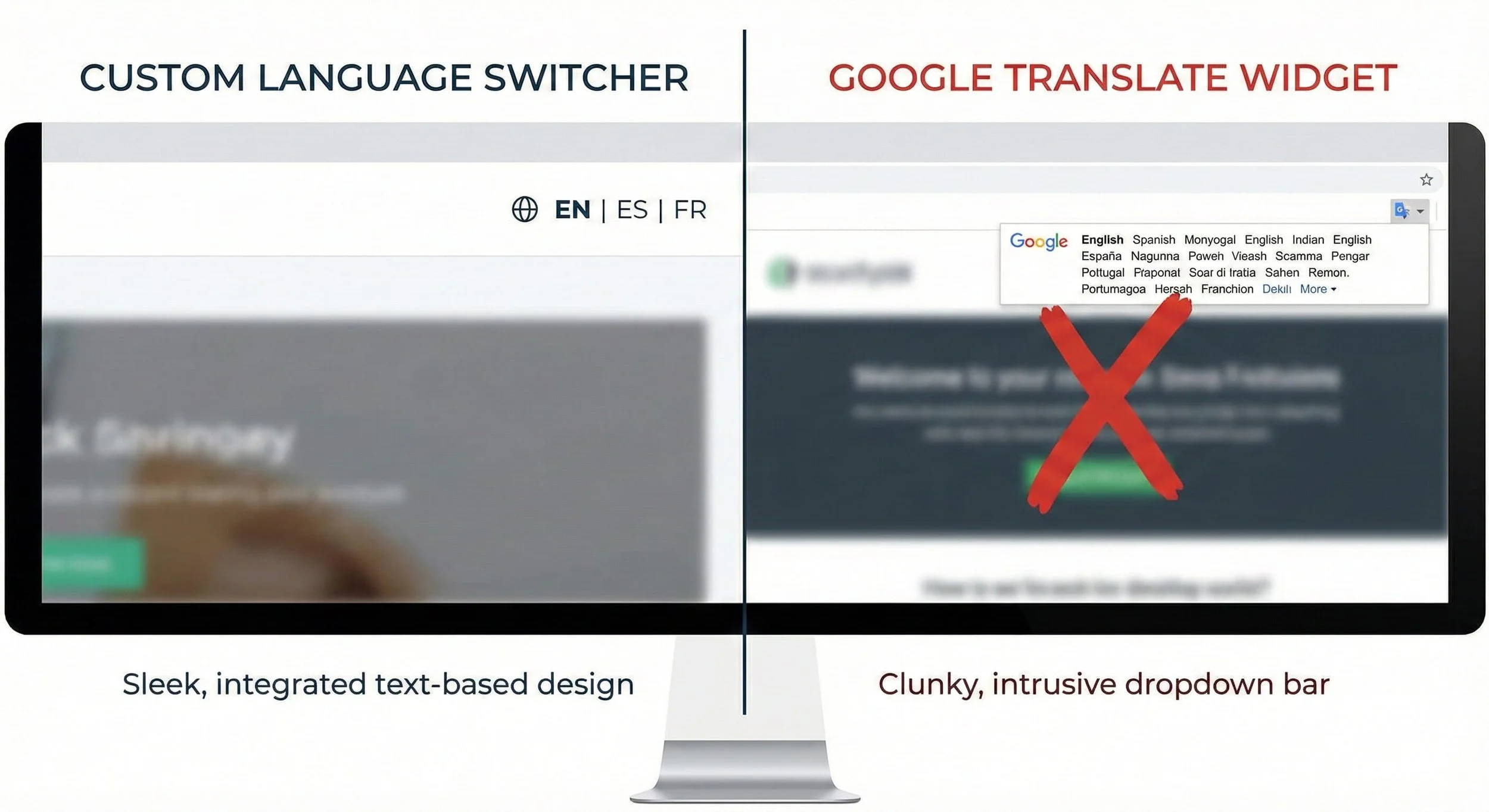
Left side: A beautiful custom language switcher. Right side: The ugly Google Translate dropdown bar.
Part 2: The Weglot Strategy (How to Do It Like a Pro)
Most people just install Weglot and leave it. That’s why their sites look "generic." Here is how we customize it for high-end clients.
1. The Setup (Don't mess this up)
Go to your Squarespace Settings > Extensions > Search "Weglot". Connect it. It will ask for your API key. Once connected, it automatically detects your content.
The Critical Step: Go to your Weglot Dashboard > Project Settings. Ensure "Auto-Switch" is OFF. Wait, what? Yes. Auto-switch sounds nice ("It detects the user is from Lithuania and shows Lithuanian!"). But in reality, it causes a "flash of content" where the user sees English for 0.5 seconds before it snaps to Lithuanian. It feels buggy. Let the user choose their language.
2. Styling the Switcher (The "Gold Member" Code)
By default, the switcher is a floating button at the bottom right. It covers your "Scroll to Top" button or your Chat widget. It’s annoying.
We move it to the Header Navigation using CSS.
Copy this into Design > Custom CSS:
CSS
/* UOGAweb PRO TIP: Move Weglot to Header */
.weglot-container {
    position: absolute;
    top: 25px; /* Adjust based on your logo height */
    right: 5vw;
    z-index: 1000;
}

/* Typography Polish */
.wg-li a {
    font-family: 'aktiv-grotesk', sans-serif; /* CHANGE THIS to your site font */
    font-weight: 500;
    letter-spacing: 0.05em;
    text-transform: uppercase;
    color: #1a1a1a !important;
}

/* Active Language State */
.wg-current {
    border-bottom: 2px solid #000; /* Underline the active language */
    padding-bottom: 2px;
}
UOGAweb website’s header showing the clean "EN | LT" switcher integrated perfectly next to the navigation.
3. The "Visual Editor" Rule
AI translation has gotten scary good (thanks, DeepL). But it still fails on nuance.
Example: In English, a button says "Get in Touch".
AI Translation: "Gaukite prisilietimą" (Lithuanian literal translation).
Correct: "Susisiekite".
Rule: Never launch without a human review. Open the Weglot "Visual Editor", click on your headlines, and rewrite them to sound human.
4. What Weglot will not translate (check this before you promise it)
Most of the site translates. These parts do not — straight from Squarespace's integration documentation, updated 17 August 2026:
Acuity Scheduling
Email Campaigns
Third-party content blocks, such as an embedded map
Member Sites and customer-account login screens
The first one deserves a flag if you run a salon, clinic or studio, because Acuity is usually exactly what I would put on that kind of site — here is why. Your pages translate beautifully, and then the booking flow, the one screen where a nervous second-language customer decides whether to go through with it, stays in the original language.
That is not a reason to avoid Weglot. It is a reason to know before you promise someone a fully bilingual booking experience. Where booking matters more than reading, I would rather run the whole site in the customer's main language and say so plainly than translate three quarters of the journey and lose people at the last screen.
Part 3: The Manual Method (For the Brave)
Okay, so you want to save the monthly fee and have total control. I respect the hustle. I built my first agency site this way. It took me three days, but the SEO result was incredible.
Here is the exact architecture you need.
Step 1: The "Two-Site" Illusion
You aren't building one site. You are building two sites under one roof.
Create a Folder in Pages called "MAIN-EN".
Create a Folder in Pages called "MAIN-LT".
Drag your English pages into MAIN-EN.
Duplicate them, translate the text, and drag them into MAIN-LT.
SEO WARNING: Look at the URL Slug. Squarespace often defaults to /home-1. Change it immediately to /lt/pradzia. The /lt/ prefix is vital for tracking.
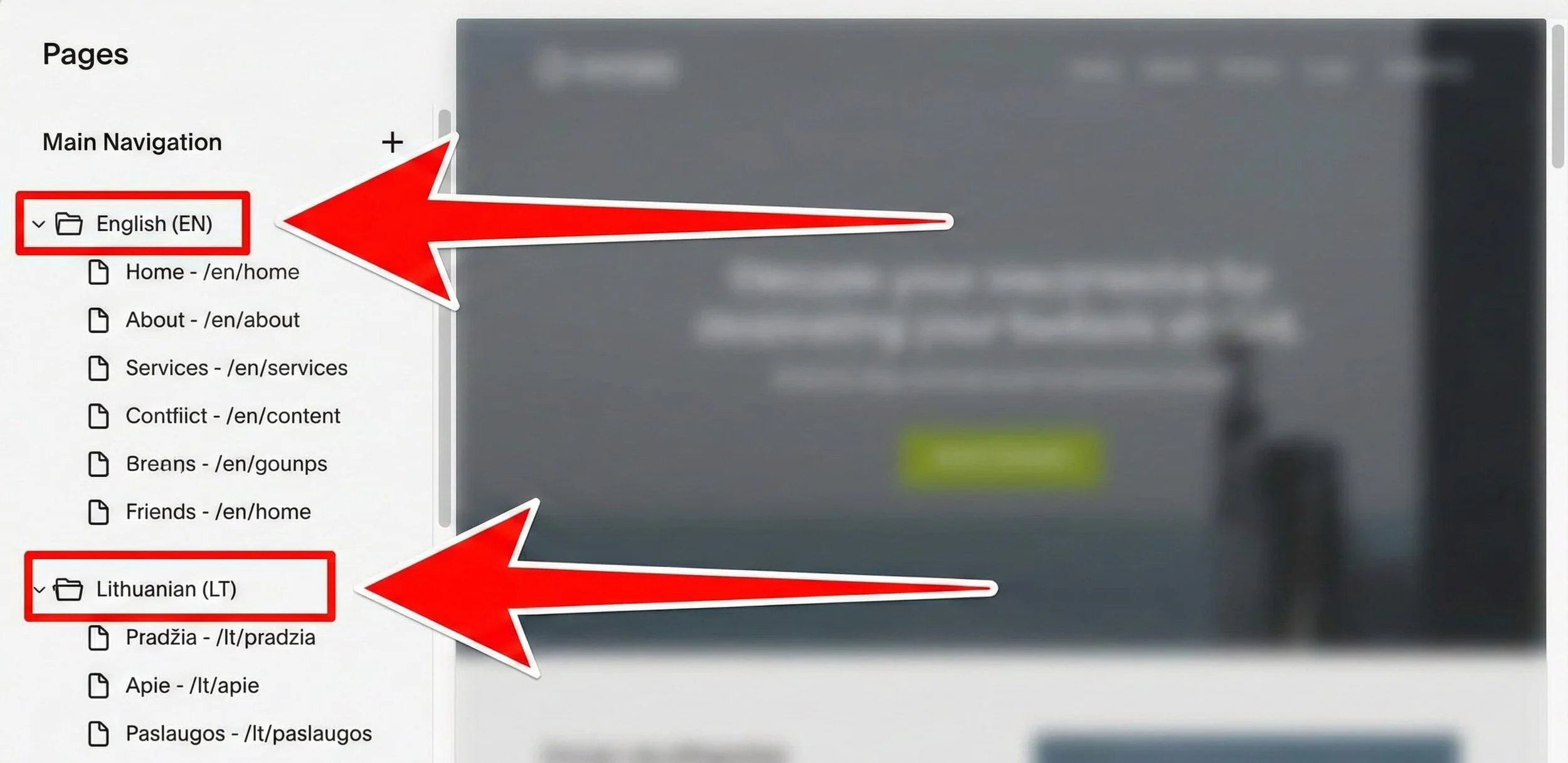
Folder structure clearly pointing to "English" and "Lithuanian" folders.
Step 2: The Navigation Nightmare (Solved)
If you just leave it like this, your header will show: HOME ABOUT CONTACT PRADZIA APIE KONTAKTAI It looks like a mess.
You need to tell Squarespace: "When I am on an English page, hide the Lithuanian links."
We use Page Header Code Injection for this. (You’ll need a plan that includes code injection — on Squarespace’s 2026 lineup that’s Core and up.) Go to the Settings (Gear Icon) of your "MAIN-EN" folder (yes, the folder itself has settings). Go to Advanced. Paste this:
HTML
<style>
  /* Hide LT Folder Links when inside EN */
  .header-nav-item:nth-child(n+4) { display: none !important; }
  /* Adjust "n+4" based on how many links you have. */
</style>
Then do the reverse for the LT folder. Note: This is "brittle" code. If you rearrange your menu, you break the code. Be careful.
Step 3: The Mobile Menu Trap
This is where 99% of tutorials fail you. They give you code for the desktop menu, but when you open your phone, the "Burger Menu" still shows ALL links.
You need to target the mobile class specifically:
CSS
/* Mobile Menu Specific Hiding */
.header-menu-nav-item a[href*="/lt/"] {
    display: none;
}
Place this in Custom CSS, wrapped in a body class targeting your English pages.
What the manual method actually costs you
I keep this list because people ask for the free route, take it, and feel misled six months later. These are the things a hand-built multilingual Squarespace site cannot do — and it is Squarespace's own documentation saying so, not me talking anyone into an upgrade:
No language subdomains, no separate domains. Everything lives on one domain, in folders. The Weglot integration can put Lithuanian on its own lt. subdomain; building it by hand cannot. That single difference is the biggest SEO gap between the two routes.
Built-in text stays in one language, site-wide. Set the site to French and your English pages get French dates and French form labels too. There is no per-page override, and it reaches metadata like blog-post dates.
One currency. Always.
Every change happens twice. New service, new price, new photo, fixed typo — twice. Three languages, three times. Forever.
So when is manual still the right call? When the second language is a handful of pages rather than the whole site. When the content barely changes. When you would genuinely rather own every tag than rent a subscription. One well-built landing page in the second language beats a neglected mirror of a forty-page site every time — and a neglected mirror is what most DIY multilingual sites become by month four.
Part 4: Advanced SEO (How to Rank #1 Globally)
This is the secret sauce. This is the part clients actually pay a specialist for — not the translation itself, the search plumbing underneath it.
The Hreflang Tag
Google is smart, but it won’t guess your intent. Without hreflang it can treat your language versions as competing duplicates — indexing the wrong one, folding them together, or showing English pages to Lithuanian searchers. There’s no formal “duplicate content penalty”, but the practical result feels like one: the right page stops showing up.
You must explicitly map the relationship.
The Code Snippet (Put this in every page header):
HTML
<link rel="alternate" hreflang="en" href="https://uogaweb.com/en/services" />
<link rel="alternate" hreflang="lt" href="https://uogaweb.com/lt/paslaugos" />
<link rel="alternate" hreflang="x-default" href="https://uogaweb.com/en/services" />
What is x-default? It tells Google: "If a user comes from a country where we don't have a specific language (e.g., Japan), show them the English version." Without this, Google might randomly show your Lithuanian page to a user in Tokyo.
This site runs exactly that pattern — reciprocal en↔lt tags on every page, pointing between uogaweb.com and lt.uogaweb.com. If you use Weglot, it generates hreflang for you automatically; go manual and these tags are yours to maintain forever. Budget for that honestly.
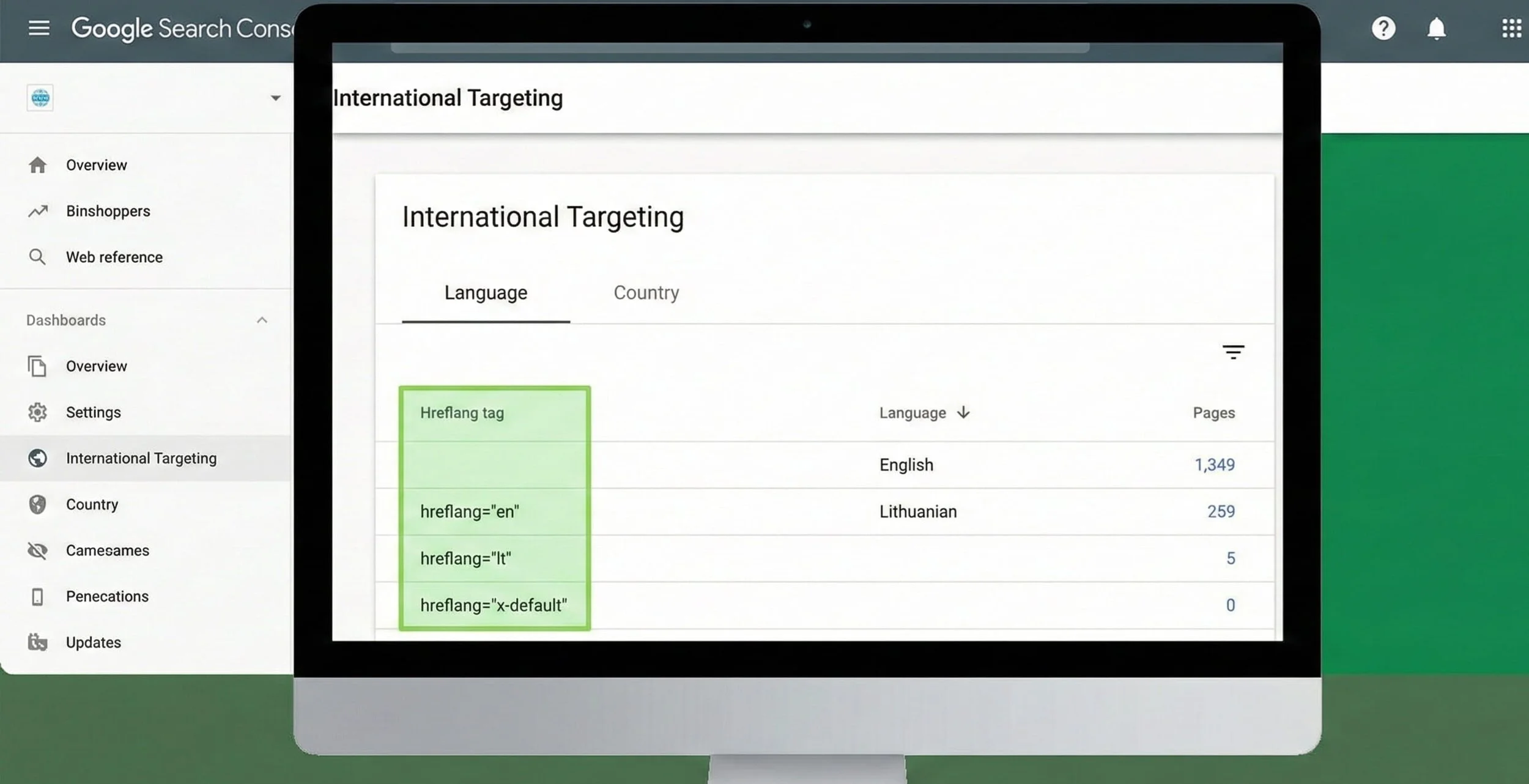
Google Search Console "International Targeting" report showing the hreflang tags highlighted.
Part 5: E-commerce & The "Currency Problem"
Here is the hard truth Squarespace doesn't advertise: You cannot sell in multiple currencies natively. Even if you translate your site to Lithuanian, the checkout will still show € (EUR) (which is fine for us) or $ (USD). You cannot show Dollars to Americans and Euros to Europeans automatically.
The Workaround:
Stick to one currency (EUR). Most international shoppers are used to it.
Add a Currency Converter Widget. There are plugins (like Elfsight) that show an approximate price in USD below the EUR price.
The Checkout Page Language. Even with Weglot, the checkout page (where they enter credit card info) is locked by Squarespace security. It allows some translation, but often reverts to the "Site Language".
Tip: Set your main Site Language to English. It’s better for a Lithuanian to see English checkout than for an American to see Lithuanian checkout (they will panic and think it's a scam).
Is there a Squarespace translation plugin?
Not in the sense WordPress people mean. Squarespace has no plugin marketplace where you install a translation engine and hand it the site. What exists is narrower, and honestly cleaner:
The Weglot integration — the only translation tool Squarespace builds into the platform and documents itself. Version 7.1 only. If you are on 7.0 this route is closed, and Squarespace's own help pages will send you to the manual method.
The manual method — no software at all. Pages you build and maintain by hand.
Everything else is a third-party script you paste into code injection yourself, with no official support, which breaks whenever either side ships a change. Code injection needs a Core plan or above, so on Basic it is not even an option.
Before you trust anything in that third bucket, ask it two questions. Does each language get its own indexable URL? Does it output hreflang tags? If either answer is no, you have a browser trick rather than a multilingual site — Google sees one page, and your second language earns you precisely nothing in search. That is the entire reason the Google Translate widget in Part 1 is a dead end, and most free translation plugin results are the same thing wearing a different hat.
Conclusion: Which Path is Yours?
I wrote this guide because I was tired of seeing businesses fail globally because of bad technical decisions.
Choose Weglot if:
You have more than 10 pages.
You run an online store.
You value your time at more than €2/hour.
Verdict: It’s the "Business" choice.
Choose Manual if:
You are a portfolio artist (photographer, architect).
You need "Pixel Perfect" control over each language.
You have zero budget but unlimited coffee.
Verdict: It’s the "Designer" choice.
Multilingual Squarespace FAQ (the questions I actually get)
Does Squarespace support multiple languages natively?
No. As of mid-2026 there is still no built-in translation feature. The official paths are the Weglot extension or a manual multi-page setup — both covered above. If Squarespace ever ships a native feature, this guide gets updated the same week.
How much does a multilingual Squarespace site really cost?
With Weglot: your normal Squarespace plan plus Weglot’s subscription — free under 2,000 words, €15/month for 10,000 words and one extra language, €29/month for three (July 2026 prices; check their page). The manual method costs nothing monthly, but budget 15–20 hours to build and double the maintenance forever.
Do the translated pages actually get indexed by Google?
Yes — that’s the point of doing it properly. Weglot serves each language on its own URLs (a subdomain — lt.uogaweb.com for this site) with hreflang tags and a multilingual sitemap, so every language competes in search on its own. A JavaScript widget that swaps text in the browser gives Google nothing to index — which is why I keep telling people to avoid that route.
Can I translate the Squarespace checkout?
Only partly. The checkout runs on Squarespace’s secure system and mostly follows the site language — Weglot can translate some of it, but expect the final payment screens to stay in your main language. For stores selling internationally I set the site language to English: a Lithuanian shopper handles an English checkout far better than the reverse.
Can Squarespace sell in more than one currency?
No — one currency per store, full stop (confirmed on Squarespace’s own docs, July 2026). Translation doesn’t change that. Pick your main market’s currency and, if needed, show approximate conversions with a third-party widget.
Is Weglot worth it for a small site?
Under 2,000 words you can run the free plan, so try it. Beyond that: if the site earns money in a second language — bookings, sales, enquiries — €15/month pays for itself with one extra customer. If it’s a hobby site, the manual method or a single translated landing page may be all you need. For service businesses — salons are the ones I write about most — the bilingual version is often the best-value marketing you already own.
How do I change the language of my Squarespace site?
Open Site Languages on version 7.1, or Language & region on 7.0, pick a language from the site-language dropdown, and save. That changes Squarespace's built-in text only — dates, form labels, navigation, checkout, customer emails — not your own content. Thirteen languages are available, six of them on 7.1 only. Full detail near the top of this guide.
Is there a free way to make a Squarespace site multilingual?
Two. Weglot's free plan covers 2,000 words in one language, which is enough for a small brochure site. Or build it manually: unlimited, permanently free, and you maintain every page twice forever. What you cannot do free is language subdomains — that needs the Weglot integration.
How many languages can a Squarespace site have?
With Weglot, whatever your plan allows: one on Free and Starter, three on Business, five on Pro, ten on Advanced, twenty on Extended. Built manually there is no hard limit — the limit is you, and it arrives faster than you would think. Two languages is a project. Four is a part-time job.
Does the Weglot integration work on Squarespace 7.0?
No. The built-in Weglot integration is version 7.1 only. On 7.0 your options are the manual method or migrating to 7.1 — and if you are weighing that up, the migration is usually worth doing on its own merits before language enters the conversation.
Still feeling overwhelmed? I get it. This stuff is technical. One missing semicolon in the code can break your mobile menu.
This is routine work for me — I’m a Squarespace Circle Gold member, my own site runs bilingual, and multilingual setups are one of the things I’m hired for most. You can see real builds in my portfolio and how I work on the services page.
If you’d rather skip the headache: 👉 Book a free strategy call — 15 minutes, and you’ll leave knowing which of the three paths fits your site, whether you hire me or not.

Author Bio
Gediminas is the founder of UOGAweb and a Squarespace Expert based in Vilnius. When he isn't debugging CSS for international brands, he's probably sailing or complaining about bad UX design on some social platforms.