How to Check What Google Actually Sees on Your Website (2026)
You can see almost exactly what Google sees on your website in about twenty minutes, with free tools and nothing else. Google Search Console's URL Inspection tool shows you the HTML Google actually fetched from a page, whether that page is indexed, and a screenshot of how it rendered. PageSpeed Insights shows how fast it opens on a phone. Your browser's "view page source" shows the title and description Google reads. A site:yourdomain.com search shows roughly which of your pages are in the index at all.
Those four checks catch most of what I find wrong on real business websites. And the most common problem isn't a design flaw. It's a setting: a page still carrying a "hide from search results" tick from before launch, or a crawler box someone checked and forgot.
What this pass will not tell you is what ChatGPT says about your business, or whether the site actually persuades anyone. I'll show you where the first one is finally measurable, and be honest about the second.
What does "what Google sees" actually mean?
Four separate things get muddled into one complaint. Separating them tells you which fix you need.
Crawling is Googlebot requesting your URL and getting HTML back. Rendering is Google running the page's JavaScript, like a browser, and seeing the finished result. Indexing is Google deciding the page is worth storing. Ranking is Google deciding where to show it, and for which search.
A page can be crawled and not indexed. Indexed and never ranked. Ranked and never clicked. When a client tells me Google can't see their website, it's one of those four, and they have almost nothing in common.
One more distinction, because it catches people out. What you get from right-clicking and choosing "view page source" is the code your server sent, before any scripts ran — Google's own documentation says exactly that. What Google indexes is the page after scripts have run. On Squarespace, Wix or Shopify that gap rarely hurts you. On a custom-built or heavily scripted site it does, and text that only appears after a script runs can be missed entirely.
How do I check what Google sees on my website?
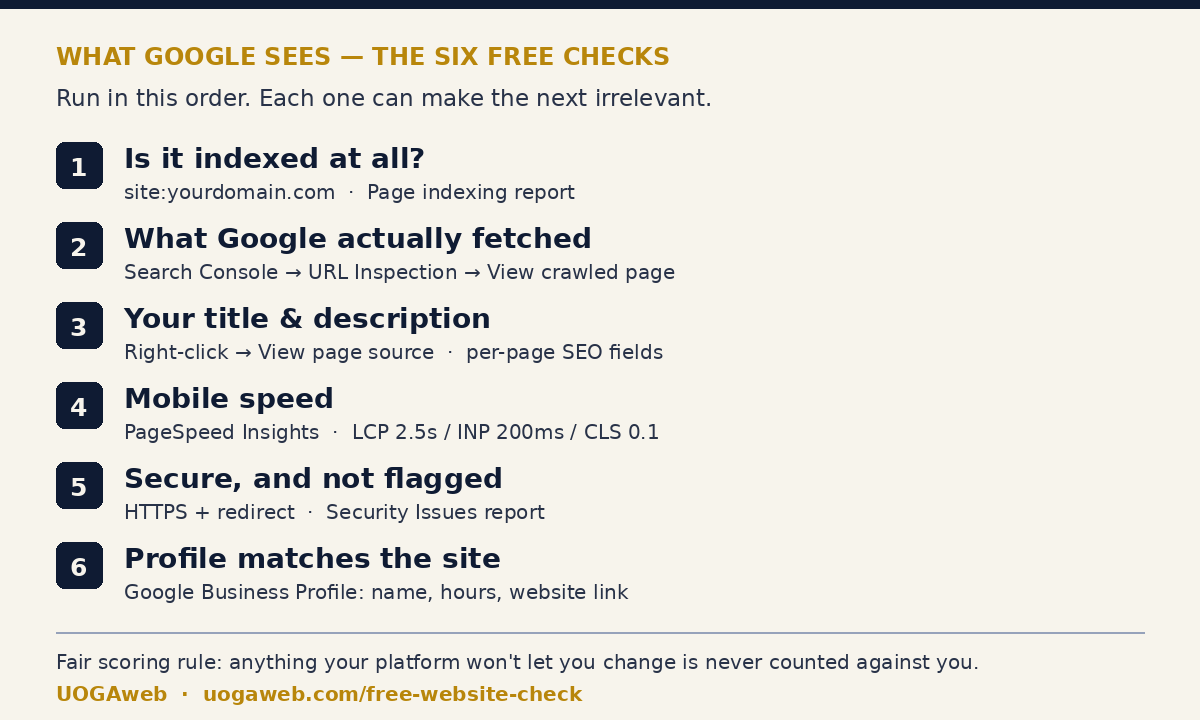
Six checks. None of them cost anything. I run this same pass on every site before I quote on a project, in roughly this order, because each one can make the next irrelevant.
1. Start with the index: is your site in there at all?
Search Google for site:yourdomain.com — no spaces, no other words. This is the first step in Squarespace's own help article on sites not appearing in search, updated on 2 September 2026, and what comes back is the pages currently in Google's index.
It's a rough instrument, not a full inventory. The authoritative version lives in Search Console's Page indexing report, which tells you how many pages are indexed and, far more usefully, the reason the rest aren't.
If nothing at all comes back and the site has been live for more than a couple of weeks, skip ahead to the crawler-settings section. That's the expensive one.
2. Then the real thing: what Google actually fetched
In Search Console, open URL Inspection and paste a page URL. Two things there are worth more than everything else on this list.
View crawled page shows the HTML Google got the last time it crawled, along with the HTTP response, the page resources it loaded and any JavaScript console output. It's only available once a URL has the status "URL is on Google".
Test live URL, then View tested page, fetches the page right now and gives you the rendered HTML and a screenshot of what Googlebot saw.
The screenshot is the part that changes people's minds. A cookie banner sitting over the whole page, a font that failed to load, a slider that never rendered — you see it, in the crawler's own view, instead of arguing about it.
Search Console is free and takes a few minutes to verify. On Squarespace it connects natively from the Analytics panel. If you don't have it set up, that is the highest-value item on this page.
3. Your title and description: what actually shows in results
Open the page, right-click, View page source, then Ctrl+F for <title and name="description". That text is what Google reads.
Two mistakes are common. First, on Squarespace the SEO title and description are their own per-page fields, separate from the page name — leave them blank and you get whatever the platform assembles, which is usually the page title plus the site title. Second, Google makes no promise to use what you wrote: its documentation says it uses a number of different sources to determine the title shown in a result, and that you can influence it, not set it. If your search result shows something you didn't write, that's the system working as designed, not a fault.
While you're in the source, check the title isn't empty and isn't still the platform's placeholder. I still find live business sites whose homepage title is blank or reads "Untitled" — and a blank title is Google's invitation to write your search result for you.
4. Mobile speed, and which numbers matter
PageSpeed Insights, free, paste the URL, read the mobile tab. That's the version that matters.
The thresholds Google publishes are worth committing to memory, because they're the actual bar: LCP of 2.5 seconds or less (the biggest thing on screen finishes loading), INP of 200 milliseconds or less (the page responds when someone taps), CLS of 0.1 or less (nothing jumps around while it loads). They're assessed at the 75th percentile of page loads, with mobile and desktop counted separately.
Two different data sets appear on the same screen and they confuse nearly everyone. Field data comes from real Chrome users on your site, and only appears if you have enough traffic. Lab data comes from one simulated load in a controlled environment. They can legitimately disagree, and Google has a whole article explaining why. Field data is the one that reflects your visitors.
There is no Mobile-Friendly Test to run any more. Google retired both that tool and the Mobile Usability report on 1 December 2023. The PageSpeed mobile run plus the Search Console screenshot cover the same ground better.
5. Security: what the browser tells your customer
Load the site on https:// and look for the padlock. Then load the http:// version and confirm it redirects instead of quietly serving an insecure copy. Then look for mixed content — a padlock warning usually means part of the page, often an image or an embedded script, is still loading over http.
Then open the Security Issues report in Search Console. It lists any sign that Google thinks your site was hacked, or is hosting something that could harm a visitor, and it's where you request a review once it's cleaned up — a review takes from a few days to a few weeks. If Google has flagged the site, visitors get a red full-screen warning before they reach anything you built, and nothing else on this page matters until that's gone. Hacked sites are rarer on hosted platforms than on self-managed installs, but "rarer" is not "never".
6. Do Google and your business profile agree?
Open your Google Business Profile the way a customer sees it and compare it to the site: business name, address, phone, opening hours, and the website link. Google's own guidance for AI features explicitly includes keeping Business Profile information up to date, and a mismatch here is among the cheapest things on this list to fix.
While you're there, search your business name the way a customer would and look at what ranks first. I did this across a batch of small salons recently and more than once the Facebook page came up above the website. That isn't a catastrophe, but it means the first impression is a page you don't fully control, with no way to book on it. For salons specifically I've written up the local-visibility side of this in local SEO for hair salons, and the salon website hub covers what a salon site needs to earn that first click.
Why doesn't my website show up on Google even though it's live?
Four causes, in the order I check them.
It's too new. Squarespace lists this first for a reason. A new site, or a new page on an old site, takes time. You can nudge it: Search Console → URL Inspection → Request indexing. That's a priority crawl request, not a guarantee.
Something is telling Google to stay away. Squarespace has a per-page "hide from search results" setting that adds a noindex tag, available on every plan, plus site-wide toggles in the Crawlers panel. One tick removes a page, or the site, from Google. This is the most expensive checkbox in web design and it's almost always left over from a pre-launch phase.
AI and search crawlers are blocked. The same Crawlers panel has a "Block known artificial intelligence crawlers" box. It ships unchecked, and Squarespace's own AI-search guidance says to keep it that way: if you limit crawlers' access to your content, "it's unlikely that your content will appear in the search results."
The content doesn't match what people search for. Also on Squarespace's own list. A beautiful page that never plainly names the service and the town will not rank for the service and the town. This is the slow one to fix. It's also the one that pays. If you want the full version of that argument, it's in my practical Squarespace SEO guide.
What do ChatGPT and AI Overviews see?
Part of this became properly measurable this year, which is new.
Google launched Search Generative AI performance reports in Search Console, announced on 3 June 2026, and the announcement now carries a note that as of 31 August 2026 the insights are rolled out to all websites worldwide. They give you a dedicated view of how often your URLs appeared in generative AI features on Search — AI Overviews and AI Mode — plus Discover, broken down by page, country, device and date.
Read the small print before you get excited: they report impressions, not clicks. It's the right tool for "are we showing up in AI answers at all" and the wrong tool for attribution.
If you're on Squarespace there's also an AI Visibility tool that checks how often your site is mentioned in prompts and where it ranks in ChatGPT or Gemini results. It's English-only, version 7.1 only, available on all website plans, and it spends AI credits, with the allowance depending on your plan. I've written separately about Squarespace's AI features and what they're actually worth.
Then there's the check nobody has a dashboard for. Open ChatGPT, Gemini, Perplexity and Copilot, ask the question a customer would ask — "best hair salon in Camden", "sports physio in Vilnius for a running injury" — and see whether you appear and what gets said about you. It's crude and it varies run to run. It's also the only way to read the answer your customer is actually being given today.
What can you safely ignore?
Plenty, and ignoring it is how you get the real work done.
A perfect score. Nobody has 100 across the board, and Google grades against real-user thresholds, not a round number on a lab test.
Warnings about headers your platform controls. A Squarespace site owner cannot set Content-Security-Policy, X-Frame-Options or Referrer-Policy. A generic scanner that docks your grade for them is docking you for a decision that was never yours. That rule is baked into my own free check: if your platform doesn't allow it, it isn't counted against you. I'd rather show you a fair score than a scary one.
llms.txt and "AI-specific" markup. Google's own generative-AI guidance states you don't need new machine-readable files, AI text files, or special schema.org structured data to appear in AI Overviews and AI Mode, and names llms.txt and content "chunking" among the tactics you can skip. That hour is better spent on a page that answers a real question.
Keyword-stuffed titles. Google's title documentation calls this out directly as unhelpful. One clear title per page.
Or run all 29 checks in one go
The manual pass above is worth doing once, because you learn where everything lives. After that, doing it by hand every month is a chore, and chores don't get done.
That's why I built the free website check. Enter a domain and it runs 29 signals across the same four areas: Google visibility (titles, descriptions, sitemap, structured data, indexability), speed and mobile using Google PageSpeed data, security and availability (HTTPS, browser warnings, Safe Browsing), and email basics — whether your domain has SPF and DMARC, because without them your mail lands in spam more often and anyone can send email in your name. Every finding is written in plain language, says what it means for a visitor, and names who can fix it. It's platform-aware, free, and it works for any business website, not just salons.
It's also honest about its limits, and they're the interesting part. An automated scan cannot see what ChatGPT says about your business, how your Google profile compares to the salon three streets away, or whether the site actually persuades anyone to book. That needs a person looking at it.
How often should you check?
Monthly is plenty for the index and the speed numbers. Beyond that, check immediately after any of these: a redesign, a domain change, a platform migration, a page you actually care about going live, or an unexplained drop in enquiries.
Migration is the dangerous one. That's when noindex tags travel, redirects get missed and a year of accumulated ranking quietly leaks away. If you're moving a site, run the pass the same day it goes live, not a month later.
What if the check finds something you can't fix yourself?
Most of what this pass turns up is a settings problem, and you can fix it in ten minutes now that you know where to look. A missing SEO description, a stray noindex, a crawler box, a business profile pointing at the wrong URL.
Content is the middle tier. Nobody automates their way to a page that names what you do, where you do it, and why someone should pick you. That's you, or someone who writes.

The third tier is the site itself — when the theme is slow, the structure fights the content, or the booking journey has three unnecessary steps. That's what I do. A new Squarespace build with me starts at £800, ongoing care from £35 a month, and you can see finished examples in the portfolio — the Kartu su kūnu sports physiotherapy site is a good example of a small service business built to pass these checks from day one. The full scope of what I take on is on the services page.
If you'd rather someone just went through your results with you, book a free 15-minute call and bring the report. I'll tell you which findings matter for your business and which ones you can ignore, including the ones that don't need me.
FAQ
Is there a free way to see what Google sees on my website?
Yes, and the free tools are the good ones. Google Search Console's URL Inspection tool shows the HTML Google fetched and a screenshot of the rendered page; PageSpeed Insights shows mobile performance. Both are free and neither needs technical skill beyond copying a URL. My own website check bundles 29 of these signals into one result if you'd rather not click through four tools.
How do I know if Google has indexed my website?
Search site:yourdomain.com with no other words. That shows the pages currently in Google's index — Squarespace's own help article recommends exactly this as a first check. For the reliable answer, use the Page indexing report in Search Console, which also explains why any excluded pages were excluded.
Why does Google show a different title than the one I wrote?
Because Google generates the title link from several sources and your <title> is only one of them. Its documentation is explicit that you influence the title rather than control it. Write a clear, specific, non-stuffed title and it'll usually be used.
Does a slow website stop Google from indexing my site?
No. Speed affects the experience of your visitors and is a ranking consideration, but a slow page still gets crawled and indexed. Fix speed because people leave, not because you're afraid of being invisible.
How long after fixing something will Google see it?
Not immediately. Squarespace's own wording is that changes won't reflect on Google until it re-crawls or re-indexes your site, which usually takes some time. Requesting indexing in Search Console puts the URL in a priority crawl queue, and that's as much control as anyone has.
Do I need to do anything special to appear in AI answers?
No special files or markup. Google's generative-AI guidance says you don't need AI text files, llms.txt, or particular schema.org markup to appear in AI Overviews or AI Mode. What you do need is content worth citing, crawlers left unblocked, and a business profile that matches your site.
Gediminas Vengrauskas builds Squarespace websites for small service businesses from Vilnius, as a Squarespace Circle Gold member. He runs the check above on every site before quoting on it. See the portfolio, the free website check, or book a free 15-minute call.